
October 12, 2026 · CHARITY
Customer Messaging on Social Media: How to Use Vira
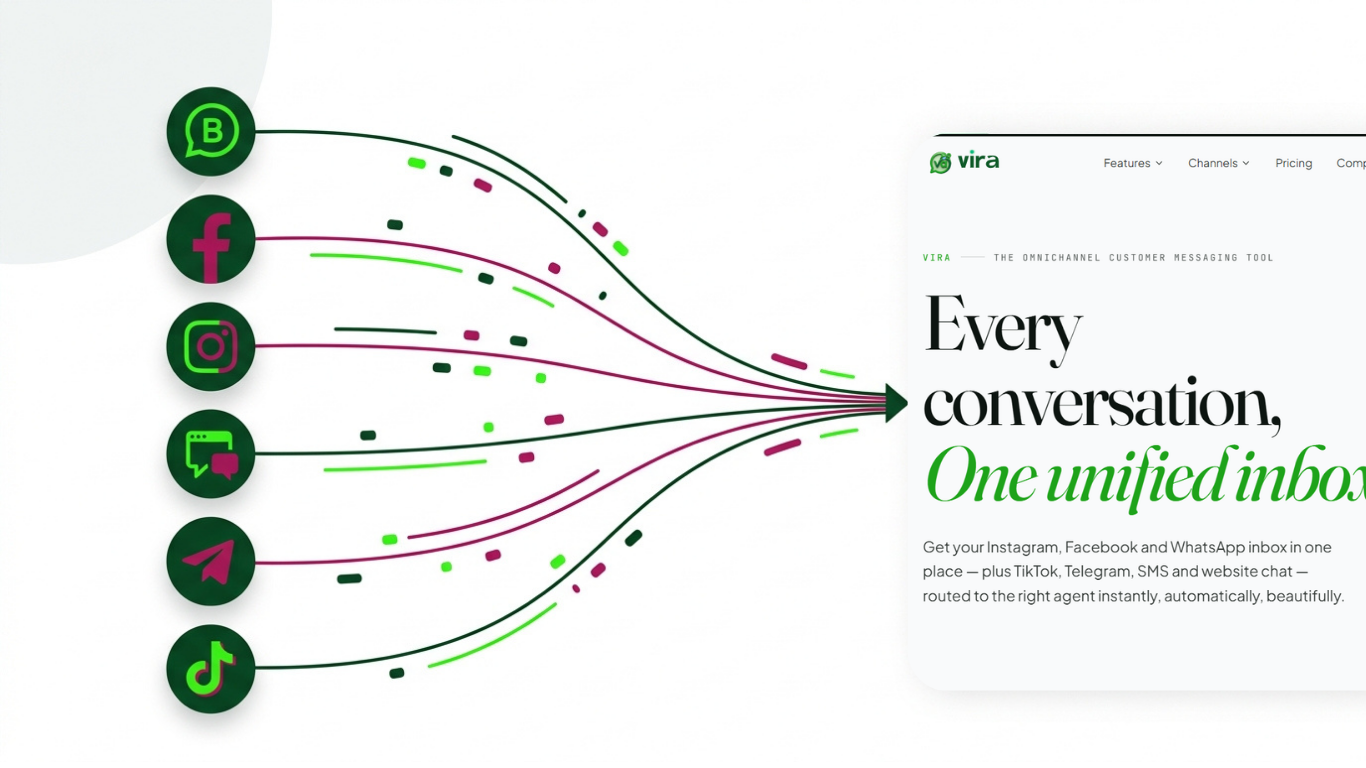
Customer messaging on social media is easier in one inbox with one client and one chat. Here's how to connect WhatsApp, Instagram, Messenger, TikTok and web chat to Vira.
Customer messaging on social media gets messy when WhatsApp, Messenger, Instagram and TikTok each have their own inbox. This guide shows how to connect them to Vira, so you stop switching between apps and answer people from one screen. If your team starts the day hunting for an unread message that arrived overnight, you already know what scattered inboxes cost.
What follows is a practical, step-by-step walkthrough for setting Vira up correctly the first time, written for business owners and team leads. We keep the order deliberate: plan your channels first, then connect WhatsApp, then Messenger and Instagram, then TikTok, and finally add web chat to your website. Rushing straight to the connection step is where most setups go wrong, because many of the credentials you need sit in a different Meta panel than you would expect.
Why one inbox beats five
Picture a small online store. A customer asks about shipping on Instagram, a returning buyer messages on WhatsApp, someone comments on a Facebook ad and then slides into Messenger, and a new visitor opens the web chat on your site. Four conversations, four tools, four tabs. Nobody owns the full picture, so replies get missed, duplicated, or answered twice by two people who did not know the other was already on it.
A unified inbox fixes that by pulling every channel into a single view. Instead of training staff on four interfaces, you train them on one. Instead of guessing which platform a repeat customer prefers, you see their whole history in one thread. This is the core idea behind centralized messaging, and it is the reason Vira exists. If you have read our earlier pieces on building a reliable customer messaging workflow and reducing first response time, this is the operational layer that makes those ideas real.
The payoff is not only speed. When every agent works from the same social media inbox, you get clean reporting, fair workload distribution, and a record you can actually audit later. That matters more as you grow past a couple of people.
Step 1: Plan your customer messaging channels
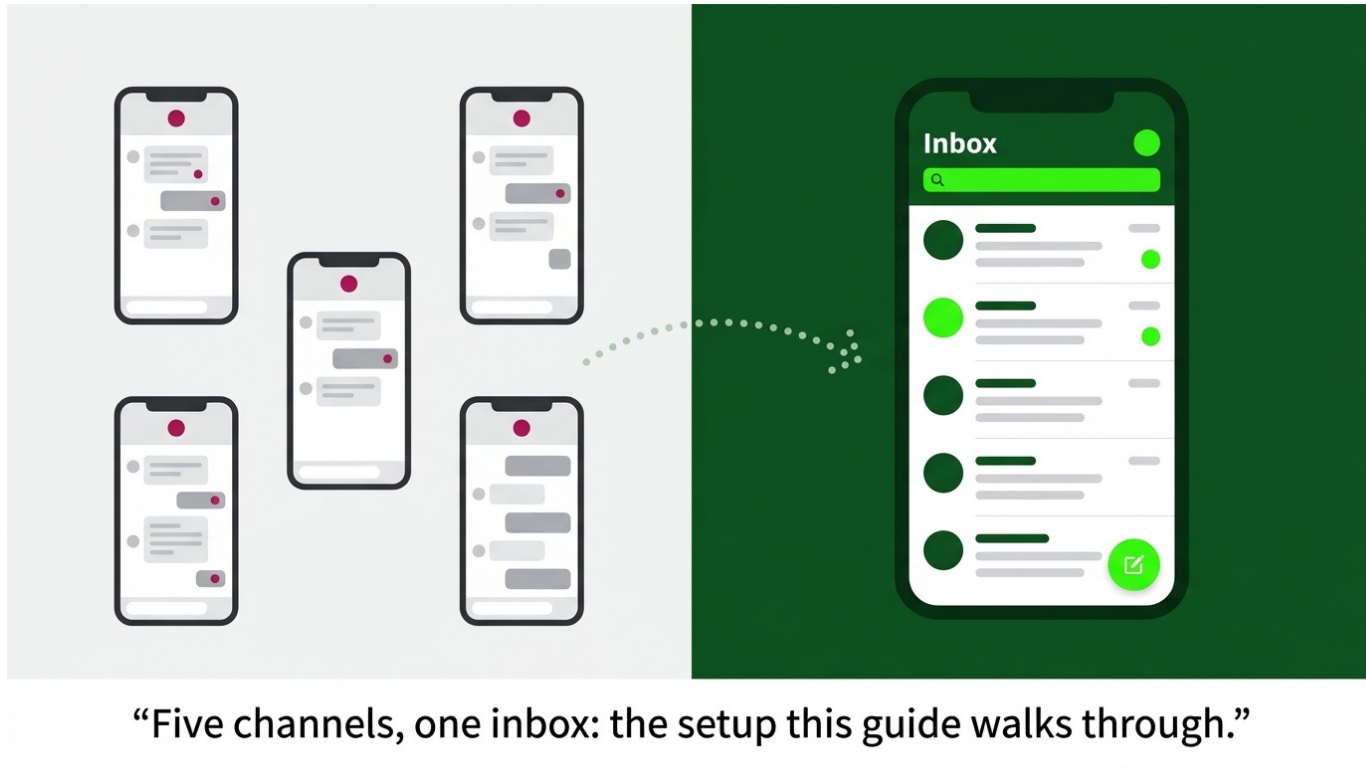
Before you touch a single setting, decide which channels you actually want live. Vira connects WhatsApp, Messenger, Instagram, TikTok and Web Chat. You do not have to switch all of them on at once, and honestly you should not. Start with the two or three where your customers already reach you, get those humming, then add the rest.
Make a short list of what you have ready, because the connection steps assume these already exist:
A verified business inside Meta Business Settings. Verification can take a day or two, so start it early if you have not done it yet.
A Facebook Page you personally administer, not just one you post to.
An Instagram Professional account, either Business or Creator, linked to that Page.
One heads-up that trips up almost everyone: until Meta approves the advanced permissions your app requests, the app can only exchange messages with people who hold a role on it. That means admins, developers and testers you have added by name. So when you test and it works perfectly with your own number but a friend outside the project gets nothing, that is expected behavior, not a bug. The restriction lifts once Meta grants the permissions in review.
Spend ten minutes on this planning step and you will save yourself an hour of confusion later. Write down which Page, which Instagram account, and which WhatsApp number maps to which part of your business. If you run several brands, be explicit about which one you are connecting first.
Step 2: Connect WhatsApp Business to Vira
WhatsApp is usually the channel businesses care about most, so we start here. The process to connect WhatsApp Business to Vira has more moving parts than the others, but each part is small. Take them in order.
Create the Meta Developer app
Go to the Meta for Developers site and create a new app. Choose the Business app type when prompted, since that is the one that exposes the customer messaging products you need. Give it a name you will recognize later, something like "Your Brand Messaging" rather than a generic default.
Once the app exists, add the WhatsApp product to it from the product list. This unlocks the WhatsApp configuration panel where most of the remaining work happens.
Set up the WhatsApp Business Account and number
Inside the WhatsApp product, you will set up a WhatsApp Business Account and attach a phone number. If you are only trying things out, Meta provides a test number you can use right away without verifying anything. That test number is perfect for confirming your Vira connection works before you commit a real business line.
When you are ready to go live, add your real number and complete the verification, which sends a code by call or SMS. Remember that a number already active in the regular WhatsApp or WhatsApp Business consumer app cannot be reused here. It needs to be a number free to register with the API.
Create a permanent access token
This is the single most important detail in the whole WhatsApp setup, and the one people get wrong. The token Meta shows you by default in the WhatsApp panel is temporary and expires in about 24 hours. If you paste that into Vira, everything works beautifully today and silently breaks tomorrow morning.
To get a token that does not expire, create a System User. In Meta Business Settings, go to System Users, add a new one, and assign it to your app with full control. Then generate a token for that System User and grant it two permissions:
whatsapp_business_messagingwhatsapp_business_management
Generate the token, and this time it will be permanent. Copy it somewhere safe immediately, because Meta only shows it once. Never paste a real token into a chat, a screenshot, a shared document or a support ticket. Treat it like a password, because that is exactly what it is.
Copy the Phone Number ID, not the phone number
In the WhatsApp panel you will see your number listed alongside a string of digits labeled Phone Number ID. Vira needs the Phone Number ID, not the human-readable phone number. People confuse these constantly. The phone number is what a customer dials. The Phone Number ID is the internal identifier the API uses to route messages, and it looks like a long numeric string with no plus sign or country formatting.
Copy the ID carefully. If you copy the wrong value here, Vira will accept it and then fail to send, with an error that is not obvious.
Request Advanced Access
Back in the app review section, request Advanced Access for whatsapp_business_messaging. Until this is granted, your reach is limited to those roled accounts from Step 1. Submitting this early is smart, because review takes time and you can keep building while you wait.
Wire it up in Vira
Now the final piece. Open the WhatsApp channel setup in Vira. It will display a webhook URL and a verify token for you to use. Go back to the Meta WhatsApp configuration, find the webhook settings, and paste the Vira webhook URL as the callback URL and the verify token into its field. Click Verify and Save.
If the verification succeeds, subscribe to these webhook fields:
messagesmessage_deliveriesmessage_reads
Then return to Vira and paste in the Phone Number ID and the permanent access token you generated. Save. Send a message from the test number, or from your own number if you added yourself as a tester, and watch it appear in the Vira inbox. That is your first channel live.
Step 3: Connect Facebook Messenger and Instagram
With WhatsApp working, these two are quicker because they ride on the same Meta app you already built. No new app required.
Add the Messenger product
In your existing Meta Developer app, add the Messenger product from the product list, just as you did with WhatsApp. Then connect the Facebook Page you administer. Messenger permissions are tied to Pages, so if you manage several, pick the right one deliberately.
You will need a Page Access Token. Like the WhatsApp token, the default one here is short-lived, so generate a non-expiring Page Access Token through the same System User you created earlier. Assign that System User to the Page with content and messaging permissions, then generate the token. Copy it, store it securely, and never expose it.
In Vira's Messenger channel setup, paste the callback URL and verify token into the Meta Messenger webhook configuration, confirm it, and subscribe to the customer messaging events Vira lists, typically messages, messaging_postbacks and delivery or read events. Drop the Page Access Token into Vira and save. Send yourself a message through the Page to confirm it lands in the inbox.
Connect Instagram messages
Instagram direct messages flow through the same Page-and-token setup, which is why linking your Instagram Professional account to the Facebook Page in Step 1 mattered. Add the Instagram messaging permissions to your app, make sure your Instagram account is connected to the Page inside Meta Business Settings, and enable the connected tools so the account allows access to its messages.
In practice, once the Page is connected and the permissions are requested, Instagram and Facebook messages start arriving in the same Vira thread view as everything else. You will see the platform marked on each conversation so agents always know where a message came from, which helps them match tone. A reply on Instagram reads a little differently than one on WhatsApp, and seeing the source keeps that natural.
One permission note for Instagram: Meta requires instagram_manage_messages with Advanced Access before you can message people who are not testers. Request it alongside the WhatsApp permission so both clear review together.
Step 4: Set up routing and the web chat
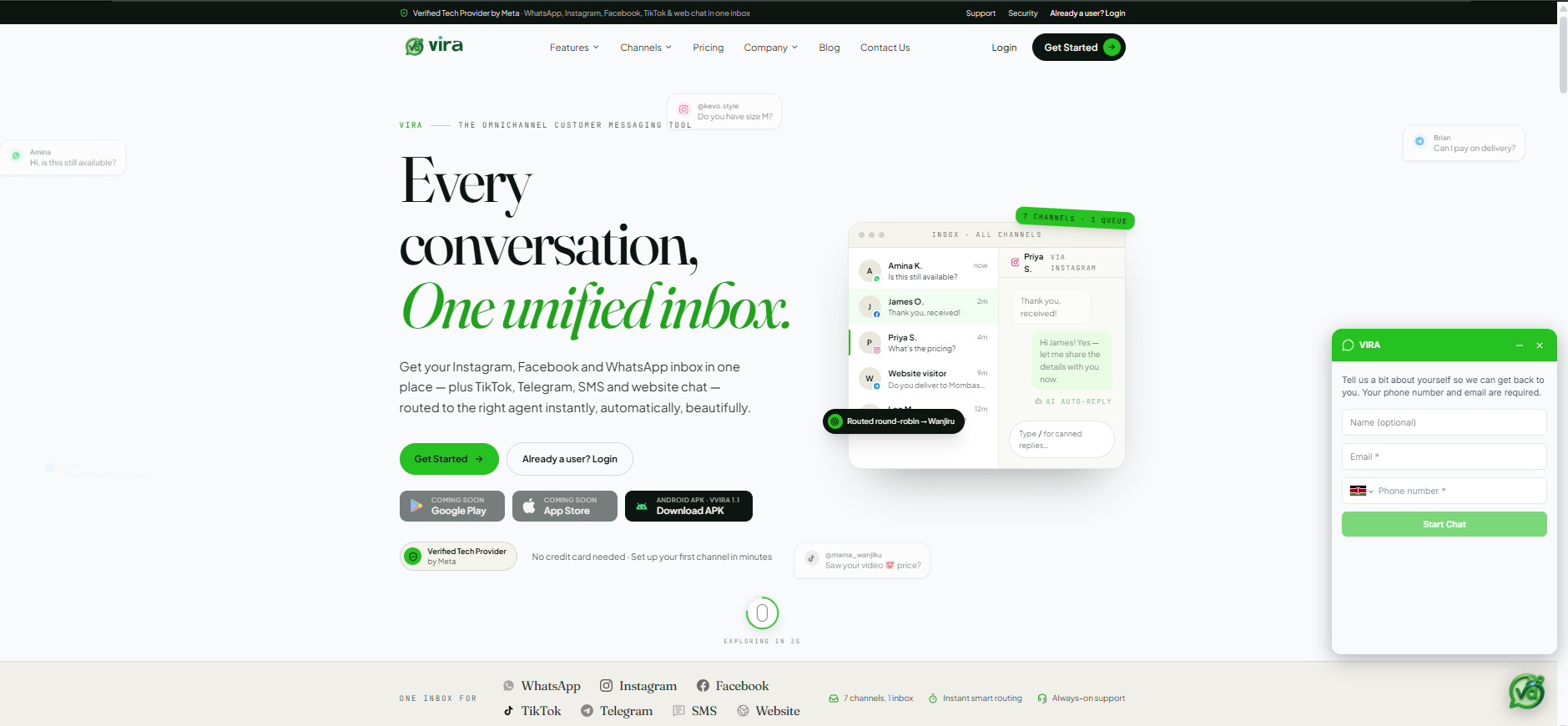
Channels are connected, but an inbox without rules is just a faster way to feel overwhelmed. This is where Vira earns its keep.
Decide how incoming conversations get assigned. You can route everything to a shared queue that anyone can pick up, or split by channel so your WhatsApp specialist handles WhatsApp while someone else owns Instagram and Facebook messages. For small teams, a single shared queue with clear ownership of each conversation usually works best. As you grow, split by channel or by topic. The routing step in Vira lets you set these rules without code, and you can change them as your team shifts. This is where the whole promise of centralized customer messaging stops being an idea and starts being a workflow.
Add the web chat widget to your site while you are here. It is a small snippet you paste into your site's template, and once it is live, visitors can message you directly from a page and the conversation appears in the same inbox as everything else. The web chat is often the channel people forget, yet it catches buyers at the exact moment they are deciding, which makes it one of the highest-intent sources you have.
Set a few basics before you go live:
Business hours, so customers see an honest expectation of when you reply rather than waiting on silence.
An away message for outside those hours, ideally one that points to a self-service answer or collects the question so you can follow up.
Quick replies or saved responses for the questions you answer twenty times a week, like shipping times or return policy.
These three take fifteen minutes and cut your average response time more than any fancy feature will.
Common mistakes and how to avoid them
After helping teams set this up, the same handful of problems come up again and again. Knowing them in advance saves you a support ticket.
The temporary token trap is number one. You will test on day one, everything works, and you will move on. Then day two arrives and nothing sends. If messages suddenly stop, check whether you used the permanent System User token or the default temporary one. Nine times out of ten that is the cause.
Wrong identifier is number two. Pasting the phone number where the Phone Number ID belongs produces vague send failures. Double-check you copied the long numeric ID, not the dialable number.
The tester restriction is number three. People panic when outside contacts cannot receive messages during setup. That is Meta's standard sandbox behavior until Advanced Access is approved. It is not broken. Add the people who need to test as roles on the app in the meantime.
Missing webhook subscriptions is number four. If messages arrive but you never see delivery or read status, you probably forgot to subscribe to message_deliveries and message_reads. Go back to the webhook fields and tick them.
Finally, verify your business in Meta Business Settings early. Meta's own developer documentation lays out the review and verification requirements in detail, and reading it before you start will spare you surprises. The platform rules change periodically, so when something behaves unexpectedly, check the official source rather than assuming the app is at fault.
What good looks like once it runs
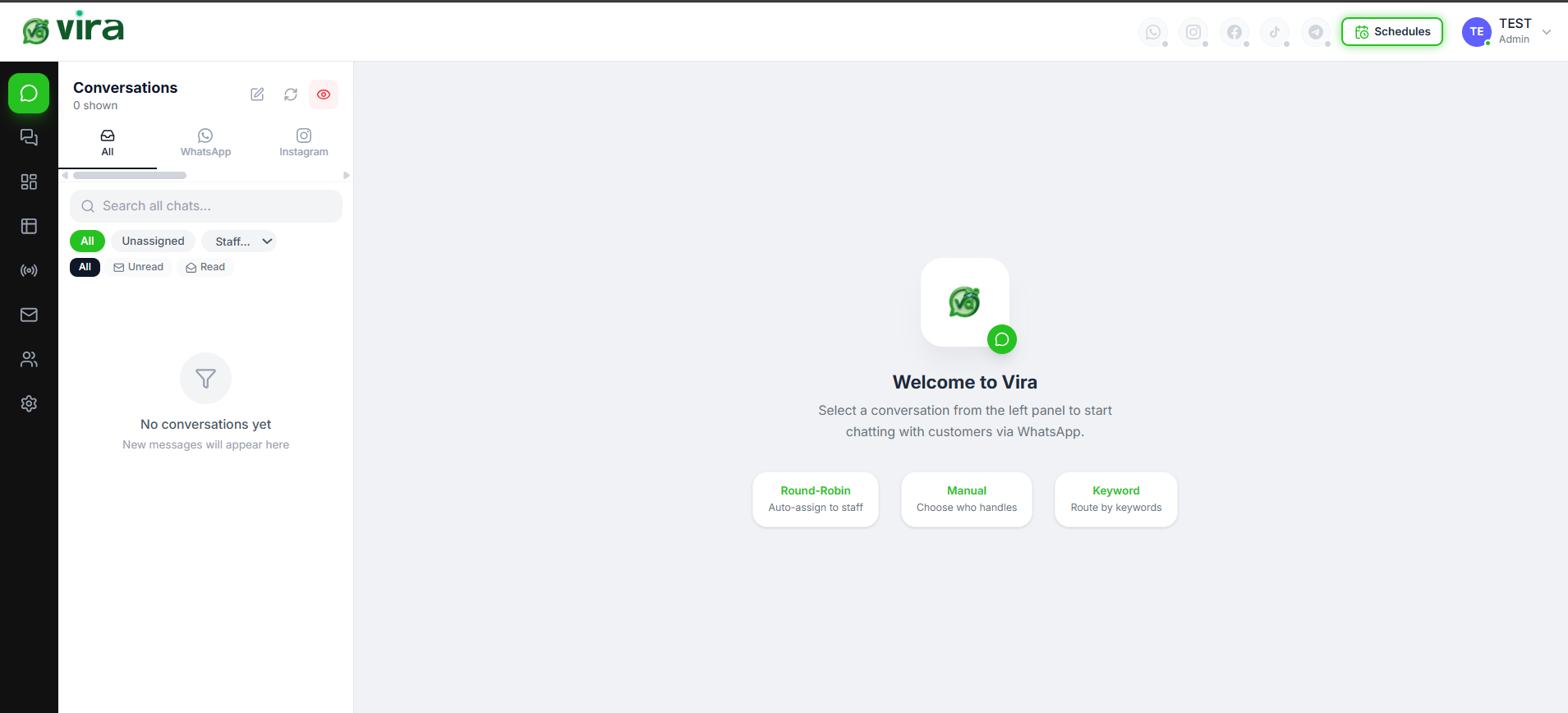
When the setup is finished, here is the day-to-day you are aiming for. A customer messages on whichever platform suits them. The conversation lands in one shared view with the channel clearly marked. The right agent picks it up or gets it assigned automatically. They see the full history, including any earlier chat on a different platform, so they never ask the customer to repeat themselves. They answer, mark it resolved, and move on.
Multiply that across a busy week and the difference is stark. Teams that consolidate customer messaging into a single social media inbox typically report faster first responses and far fewer dropped conversations, simply because nothing is hiding in a separate app anymore. The customer does not know or care which tool you use. They just notice that you reply quickly and remember them. That is the whole point.
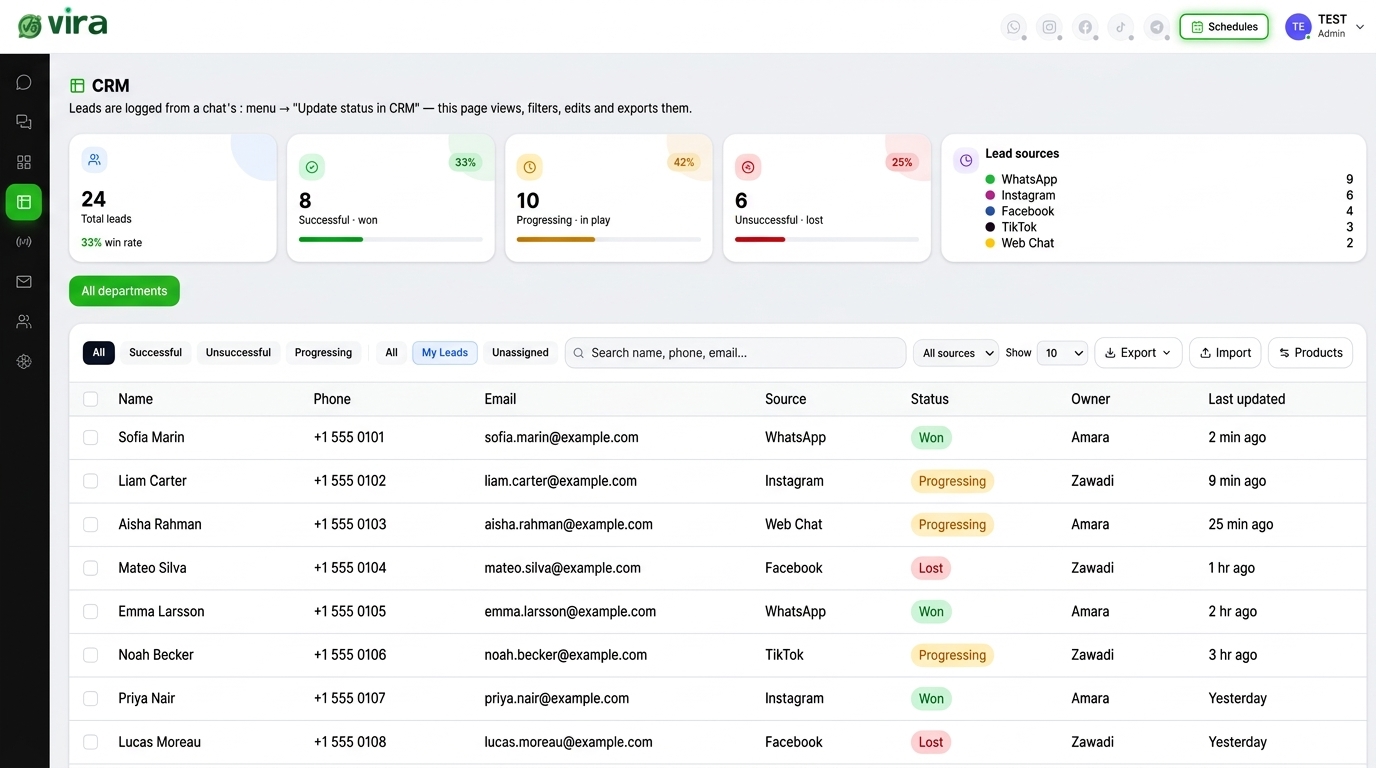
The gains compound over time, too. Once every conversation flows through one place, you can actually measure things: which channel drives the most sales questions, when your peak hours really are, which saved reply resolves issues fastest. You cannot improve what you cannot see, and five separate inboxes show you almost nothing.
Getting started today
If you only do one thing after reading this, connect a single channel and send yourself a test message. WhatsApp with the test number is the fastest proof that the whole system works, and the confidence you get from seeing that first message appear in Vira makes the rest feel easy.
Plan your channels, generate permanent tokens through a System User, copy the right identifiers, request Advanced Access early, and wire the webhooks correctly. Do those in order and you will have a working unified inbox the same day. Add Messenger, Instagram and web chat once WhatsApp is solid, then tune your routing and saved replies as your volume grows.
Watch the walkthrough to see customer messaging in one inbox, from the first connection to a live reply, and follow along step by step as you set up your own account.